Notifications
Route pipeline and deploy events to Slack, email, Google Chat, or outbound webhooks so the right channel sees success, failure, and canary pauses without watching the console.
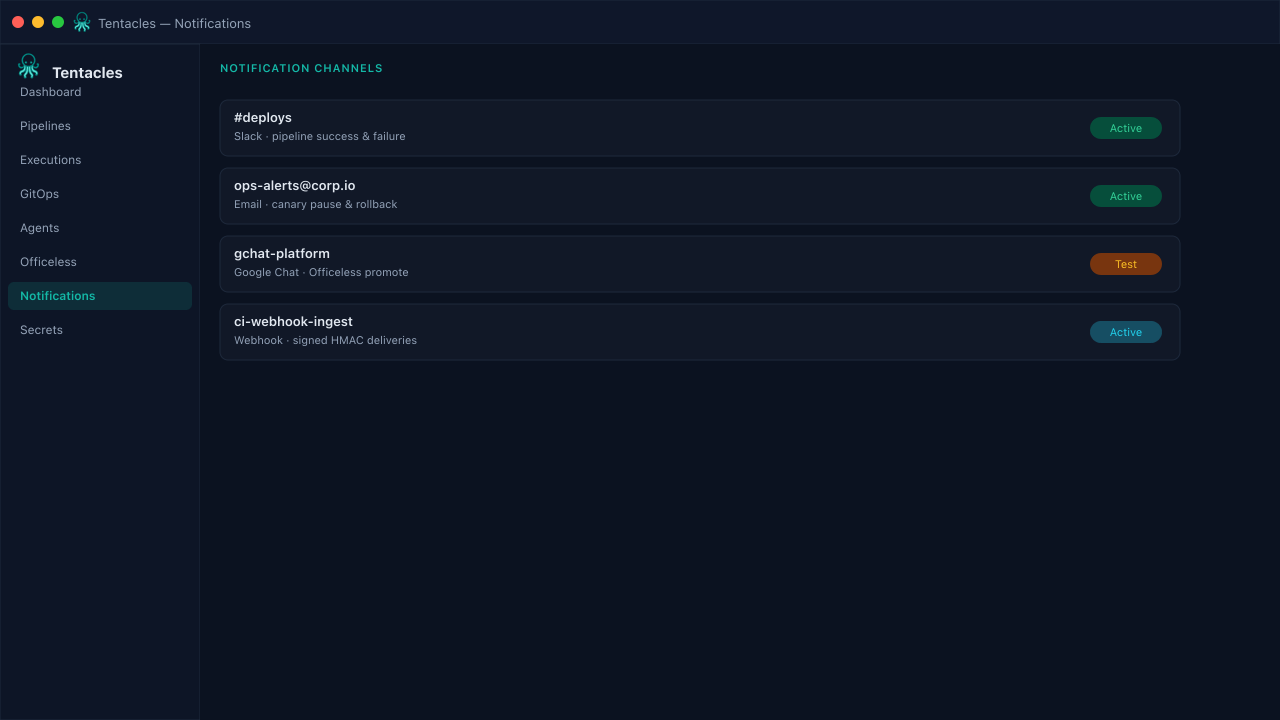
Illustrative preview of the notifications screen in Tentacles
Before you start
- An org admin account
- A Slack webhook, SMTP, Google Chat space, or HTTPS endpoint ready to receive events
Step by step
- 1
Open Notifications
From the console sidebar, open Notifications — each row is a named channel with a type (Slack, email, Google Chat, or webhook) and a set of subscribed events.
- 2
Create a channel
Add a channel name, pick the delivery type, paste the webhook URL or SMTP details, and choose which events fire it — pipeline started, succeeded, failed, or canary paused.
- 3
Send a test event
Use Test on the channel row to push a sample payload. Confirm it lands in Slack or your inbox before wiring it to production pipelines.
Tip: Keep canary-paused alerts on a dedicated channel so the team that can approve traffic steps is not drowned by routine success noise.